Time Clock Quick Reference Guide
MU EmpCenter: Time Clock Quick Reference
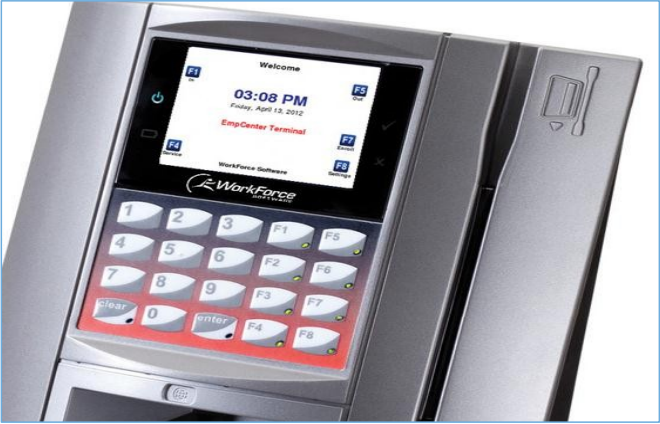
Below is an example of the EmpCenter Standard Time Clock, which will be located in certain departments
on campus. For a list of current time clock locations visit: Time Clock Locations
Clocking In and Out
1. If the screen is blank, press any key to activate the clock.
2. On the keypad, press the appropriate function key, F1 to clock in or F5 to clock out.
3. Swipe your MUID card with picture facing in (magnetic stripe to the right).
(If you have only one campus job, skip step 4 and go to step 5. If you have more than one campus job, continue with step 4 and step 5)
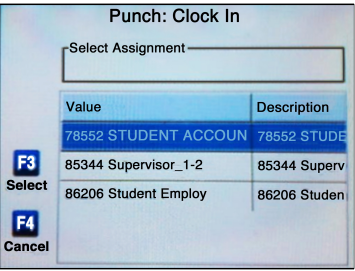
4. Use the arrow keys to move up and down the list of options, then press F3 to select the assignment (job) for the time you wish to record.
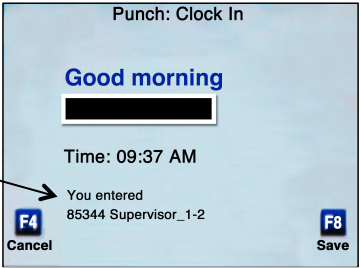
5. Confirm the job on the screen is correct. Press F8 to save and log off.